What Vaideo Editor is and who it's for
Vaideo Editor is the manual side of Vaideo: a timeline video editor you open in your browser, with no software to download. It handles the everyday jobs —cut a clip, remove a pause, add a title, raise the voice level or export in vertical— and it's where you fine-tune the videos Vaideo's AI generates.
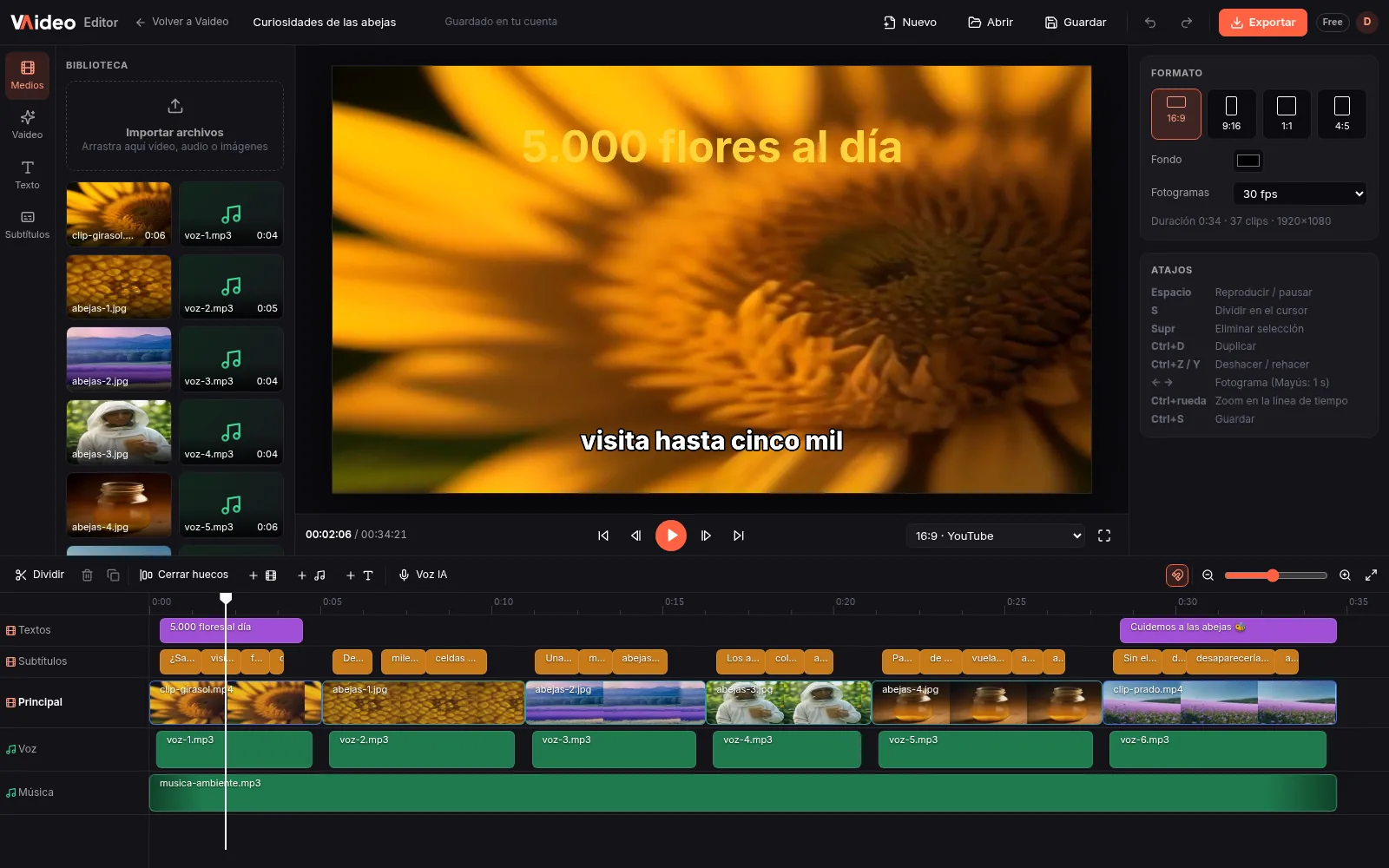
It's built for Shorts, Reels and TikTok creators, small businesses and anyone who needs to put a video together quickly on a computer without learning pro software. If you already use CapCut, the layout will feel familiar: media on the left, viewer in the middle, properties on the right and tracks at the bottom.
It works on computers and needs a screen at least 900 pixels wide; there's no mobile version. You can open it and try it without an account; to upload your files, save projects and export, it asks for a free Vaideo account.
What you can do on the timeline
You upload video, audio or images (up to 2 GB per file) and drag them onto the timeline, which has video, image, text and caption layers plus audio tracks. There you can split at the playhead, delete, duplicate, close gaps between clips and undo or redo any step.
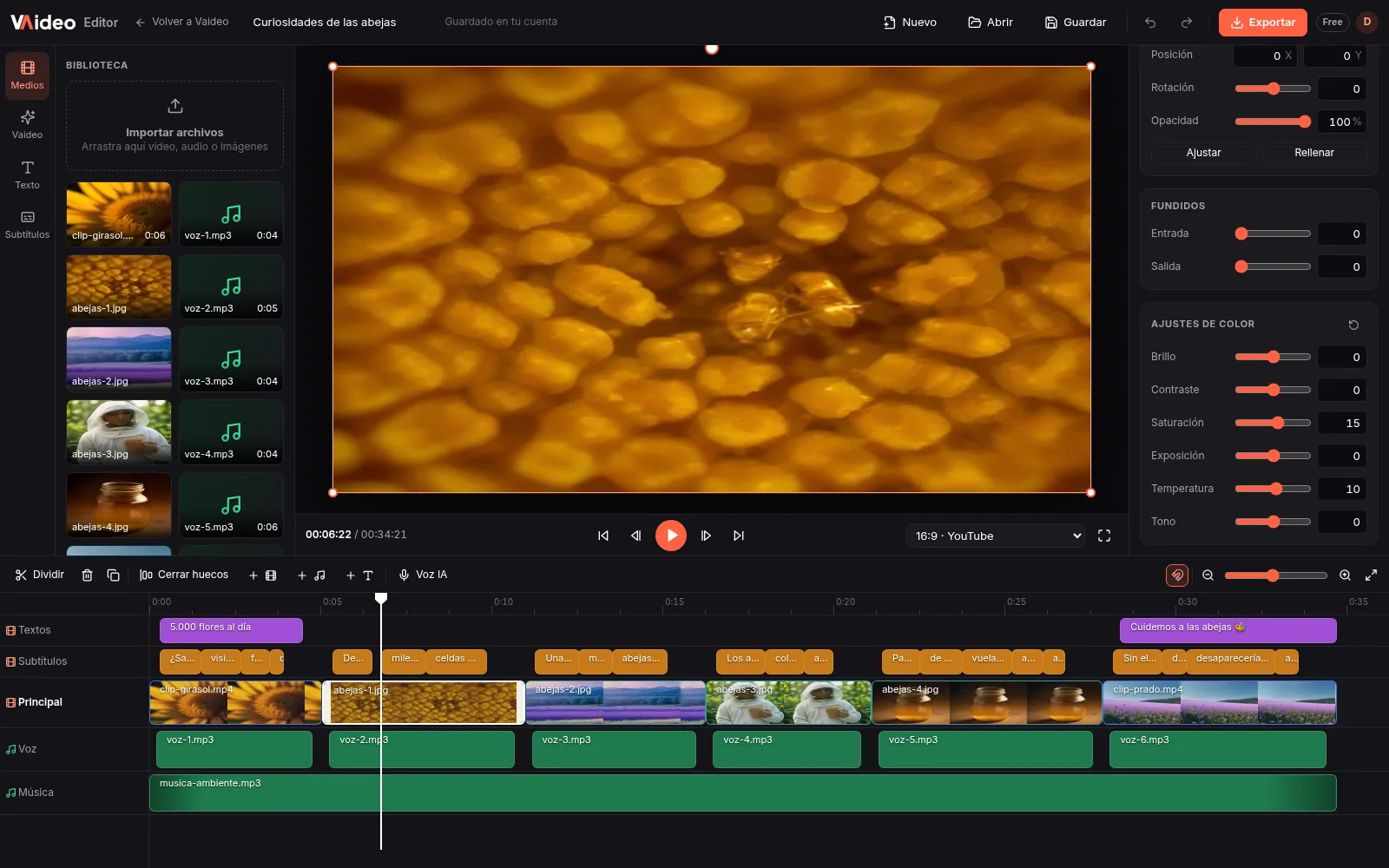
Each clip has its own settings: scale, position, rotation and opacity; speed from 0.25x to 4x; and colour correction with brightness, contrast, saturation, exposure, temperature and tint. For audio you set volume from 0 to 200%, mute tracks and add fade-ins and fade-outs.
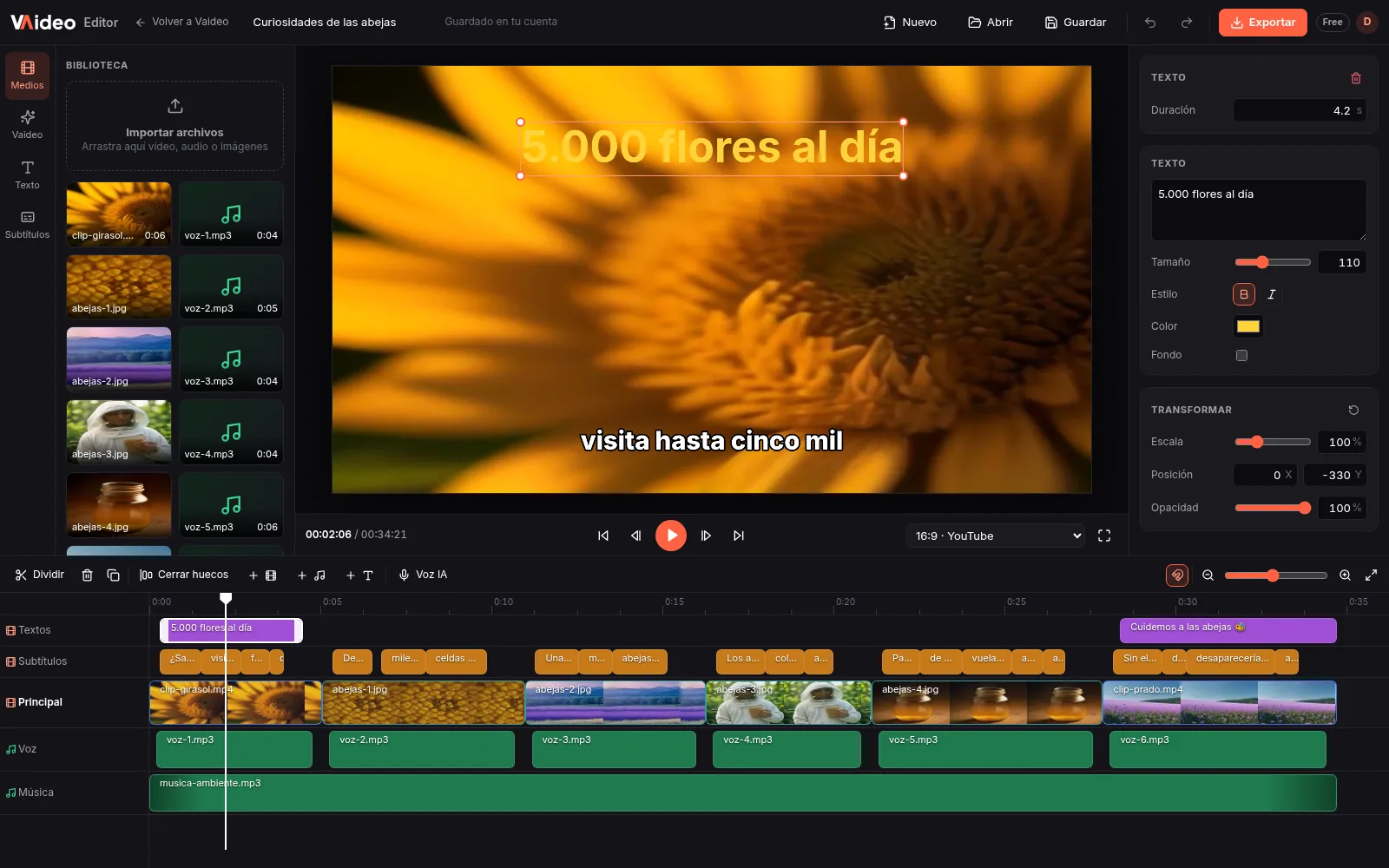
For text there are title layers and a global caption style. The canvas can be 16:9 for YouTube, 9:16 for Shorts, Reels and TikTok, or 1:1 and 4:5 for the feed. When you're done, you export an MP4.
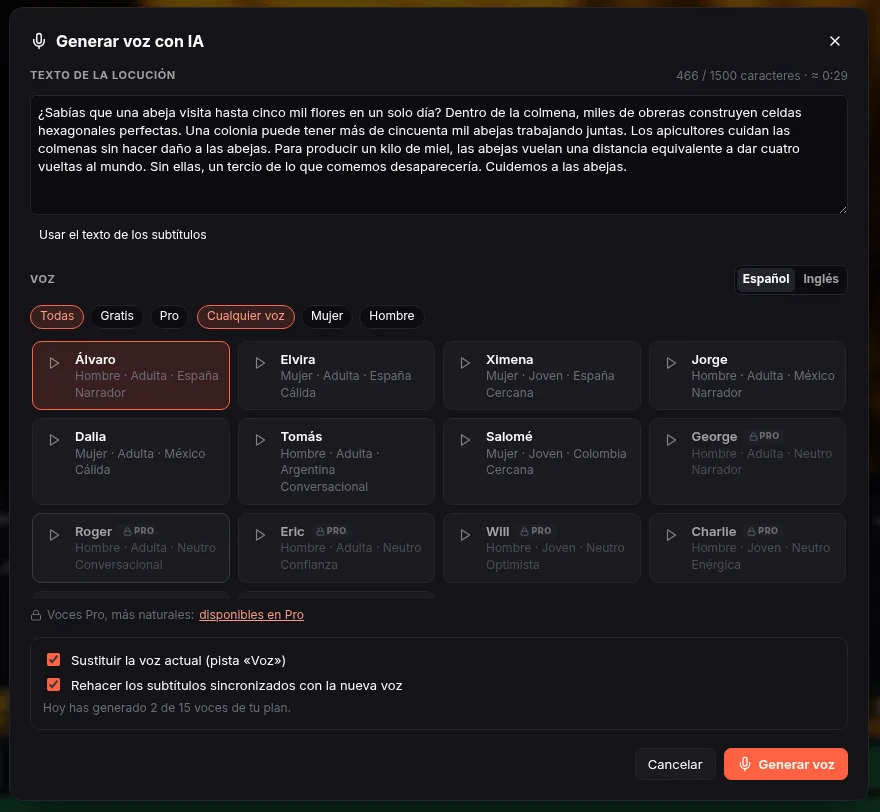
If you're missing the voice-over, the “Voz IA” (AI voice) button on the timeline generates it from text: type it or reuse the caption text, pick one of 13 free voices (7 Spanish with Spain, Mexico, Argentina or Colombia accents and 6 English from the US and UK) and the editor places the voice on its track and rebuilds the captions synced word by word. On the free account that's up to 1,500 characters per voice-over and 15 voices a day.
From AI to editor: write, generate, fine-tune
What sets Vaideo Editor apart from other free editors is that you don't have to start from an empty timeline. You write a topic or paste an article URL, and Vaideo's AI writes the script, narrates it with an AI voice in English or Spanish, finds or generates the images and assembles the video with captions.
Once the video is ready you hit “Open in the editor” and it arrives split into tracks: video, voice and captions. So you can fix a mis-captioned word, trim a scene you don't need, swap an image for your own clip, add your logo or drop in your own background music without touching the rest.
It's the split of work that makes sense: the AI does the boring 90% (script, voice-over, image search, caption sync) and you spend five minutes on what only you know, like a product's exact name or an ending with your brand.
Limits and plans, no fine print
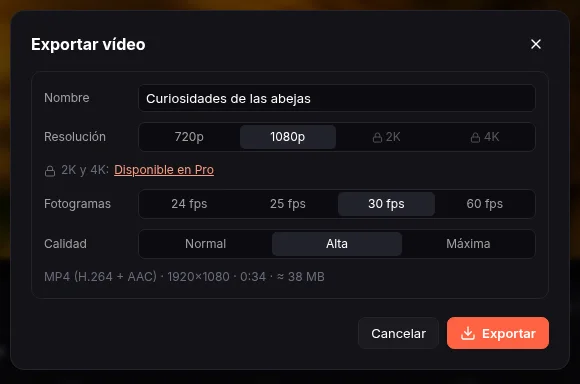
The editor is free on every plan. With the free account you export up to 1080p, one video at a time; with Unlimited (€39/month) you can also export in 2K and 4K. Footage you upload exports with no watermark on any plan; AI-made videos on the free plan carry the Vaideo watermark.
What it doesn't have yet: a mobile app, automatic transcription of your own video (automatic captions come with the videos the AI creates or when you generate the voice-over with AI voice), a music library, transitions, templates, effects or keyframes. You can add your own audio, but no songs are included.
If you need those every day, CapCut or a desktop editor will give you more. If you want to edit and fine-tune quickly in the browser, and above all have the AI hand you the finished video, Vaideo Editor is the better fit.
What you can do with it
Cut, join and reorder your clips
Split at the playhead, delete what you don't need, duplicate and close gaps in one click. Undo and redo with Ctrl+Z / Ctrl+Y.
Fine-tune a video made with AI
“Open in the editor” brings it in as video, voice and caption tracks: fix a word, change a scene or add your logo.
Adapt a video to vertical, square or landscape
16:9, 9:16, 1:1 and 4:5 canvases; reposition with scale and position so nothing important gets cropped.
Adjust pace, colour and sound
Speed from 0.25x to 4x, brightness, contrast, saturation, exposure, temperature and tint; volume up to 200% and fades.
Give your video an AI voice
Type the text, pick one of 13 free Spanish or English voices and the editor adds the voice-over and synced captions.
Step by step
- 1
Open the editor
Go to Vaideo Editor in your computer's browser. There's nothing to install.
- 2
Create your free account
To upload files, save projects and export you need a Vaideo account. It's free, no card needed.
- 3
Import your files or a Vaideo video
Upload video, audio or images (up to 2 GB per file) or open a video you created with the AI.
- 4
Edit on the timeline
Cut, reorder, add text, adjust colour, speed and volume, add an AI voice if you need one and choose the canvas: 16:9, 9:16, 1:1 or 4:5.
- 5
Export as MP4
Up to 1080p free; 2K and 4K with Unlimited. Your footage exports with no watermark.
Tips that make the difference
- ★If you're starting from scratch, try generating the video with AI first and open it in the editor: you skip the whole assembly.
- ★Pick the canvas before placing clips; changing it at the end means repositioning text.
- ★Use “Close gaps” after deleting sections so no black frames are left between clips.
- ★Keep background music at 10-20% and raise the voice if needed: volume goes up to 200%.
- ★Learn the shortcuts: S splits at the playhead, Delete removes and Ctrl+Z undoes.
Vaideo Editor vs CapCut, honestly
| CapCut | Vaideo Editor | |
|---|---|---|
| Where it runs | Desktop, mobile and web apps | In your computer's browser, nothing to install |
| Create the video from text | You start from your clips or a template | Vaideo's AI writes, narrates and assembles it, then you open it in the editor |
| Watermark on your footage | Depends on the plan and the assets you use | What you upload exports clean, free plan included |
| Basic editing (cut, text, speed, colour, audio) | Yes | Yes |
| AI voice-over | Yes, text-to-speech with many voices | Yes: 13 free voices in Spanish and English, and captions sync automatically |
| Templates, music, transitions and effects | Yes, with a very large library | Not yet: only your own audio, no transitions or templates |
| Mobile | iOS and Android app | No: needs a screen 900 px or wider |
Frequently asked questions
Is Vaideo Editor really free?+
Yes. The editor is free on every plan and exports up to 1080p. Unlimited adds 2K and 4K export. You only need a free account to upload files, save and export.
Does it add a watermark?+
Not on what you upload: your clips, audio and images export clean on any plan. Videos created with AI on the free plan carry the Vaideo watermark; with a pack or Unlimited they don't.
Does it work on mobile?+
No. Vaideo Editor is made for computers and needs a screen at least 900 pixels wide. There's no mobile app.
Which files can I upload?+
Video, audio and images, up to 2 GB per file. You can also open any video you created with Vaideo's AI, which arrives in separate video, voice and caption tracks.
Does it auto-caption my own video?+
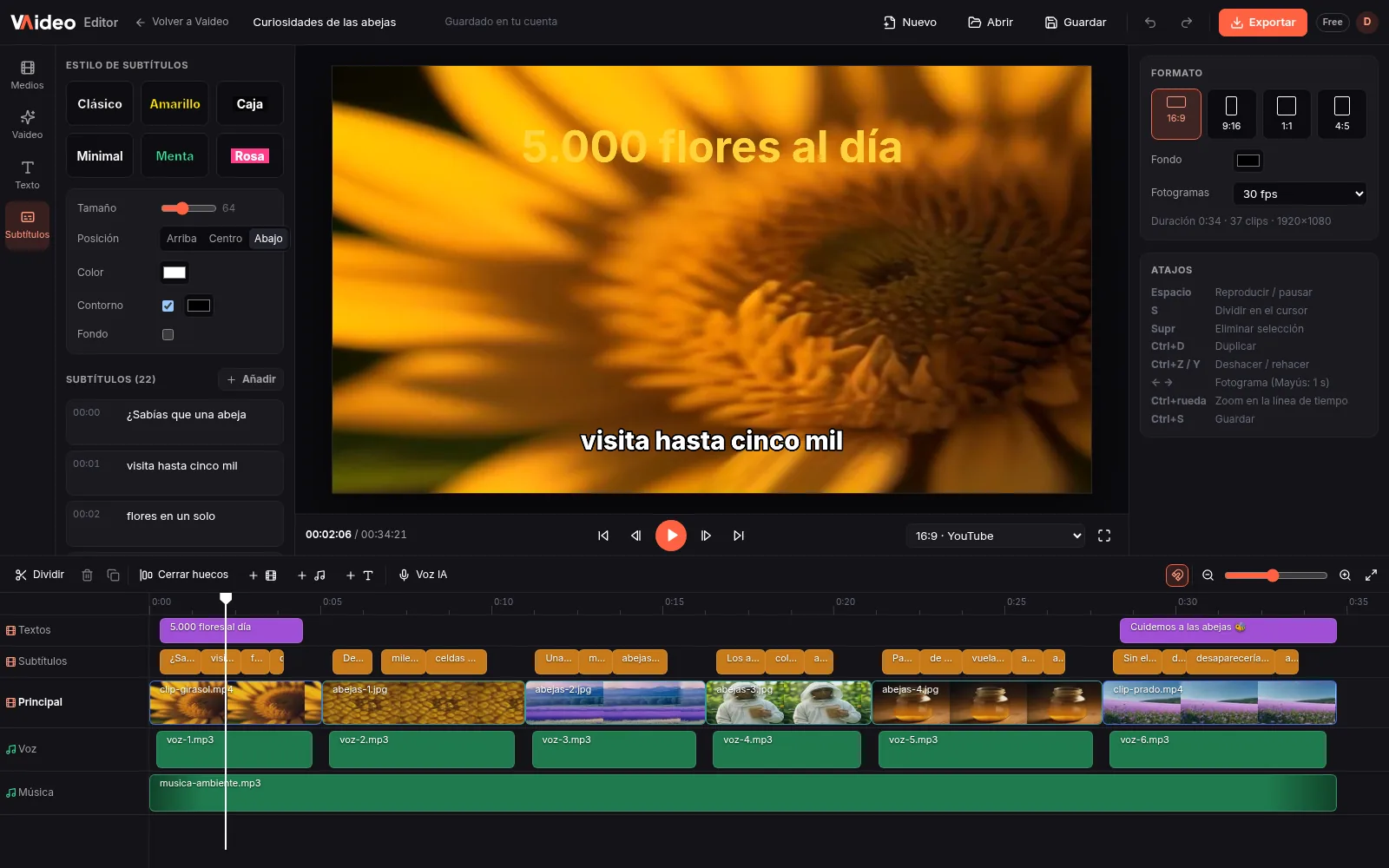
Not for your own videos. Automatic captions come with the videos Vaideo's AI creates, and in the editor you can fix them and change their style. On your own video you can add text by hand or, if you give it a voice-over with AI voice, the editor creates captions synced to that voice.
Can I add an AI voice to my video?+
Yes. With the “Voz IA” (AI voice) button you type the text (or reuse the captions), pick a voice and the editor replaces the voice-over and rebuilds the captions. There are 13 free voices: 7 Spanish (Spain, Mexico, Argentina and Colombia) and 6 English. On the free account, up to 1,500 characters per voice-over and 15 voices a day.
Does it have music, templates or transitions?+
Not yet. You can add your own audio (music, voice or sound effects you have), but there's no music library, templates, transitions, effects or keyframes.
Which formats does it export?+
MP4, on a 16:9, 9:16, 1:1 or 4:5 canvas. Up to 1080p on the free plan, one export at a time; 2K and 4K with Unlimited.
How is it different from CapCut?+
It runs in the browser with nothing to install, doesn't watermark your footage and, above all, Vaideo's AI can create the video for you before you edit it. CapCut has a mobile app, templates, music and transitions, which Vaideo Editor doesn't have yet.
Updated: