The format TikTok, Reels and Shorts expect
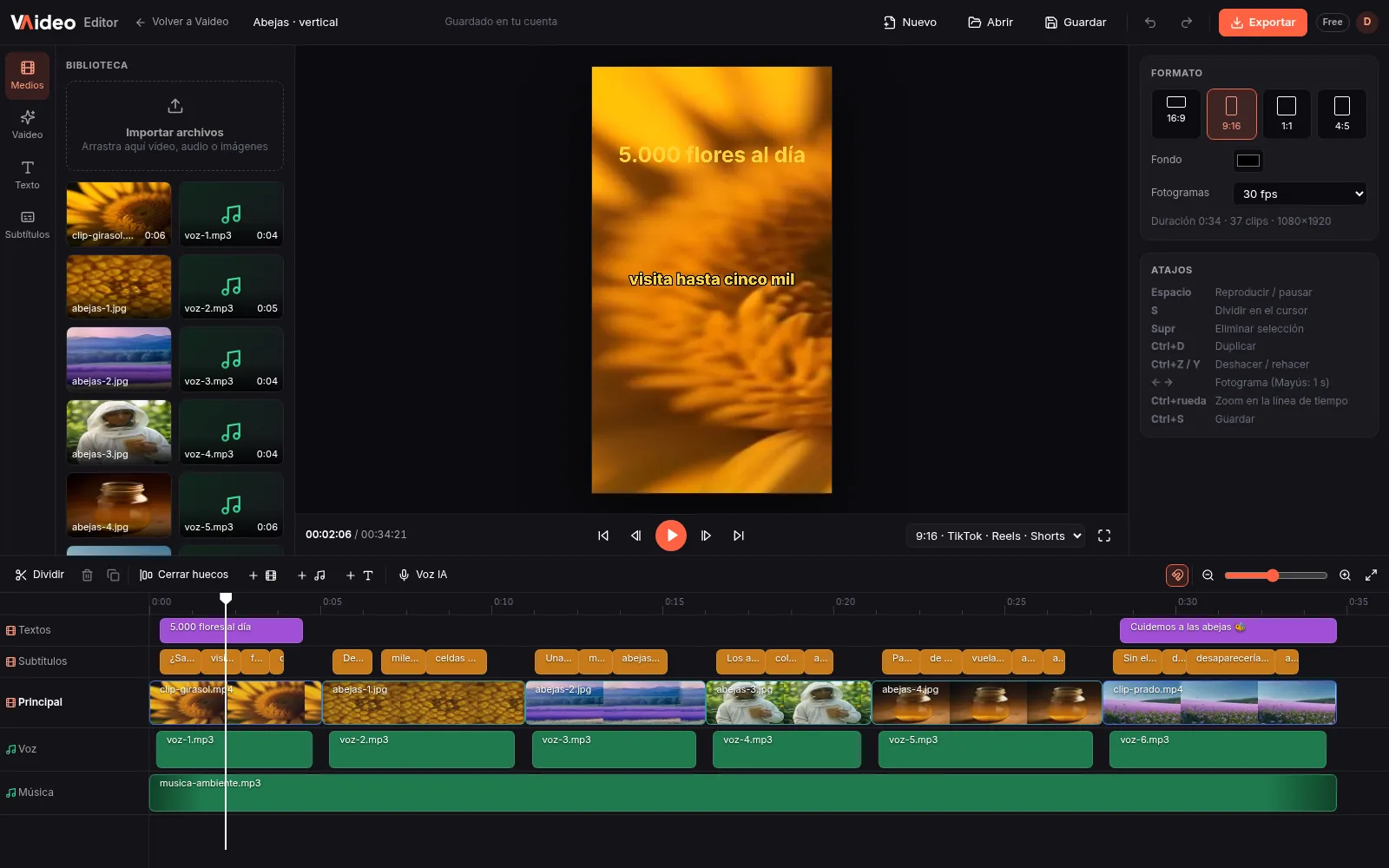
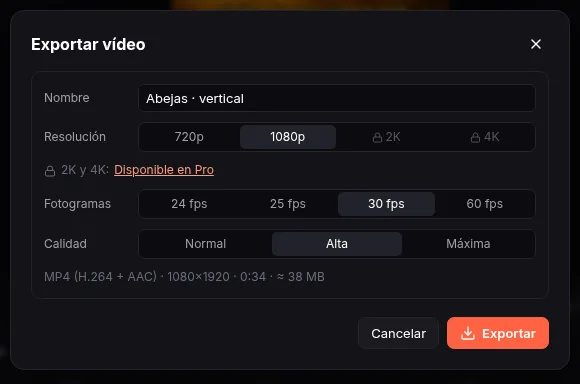
All three short-video platforms play full-screen in vertical, at a 9:16 ratio. The recommended resolution is 1080x1920 pixels, which is exactly what Vaideo Editor exports on the free plan when you choose the 9:16 canvas (the picker labels it “TikTok · Reels · Shorts”).
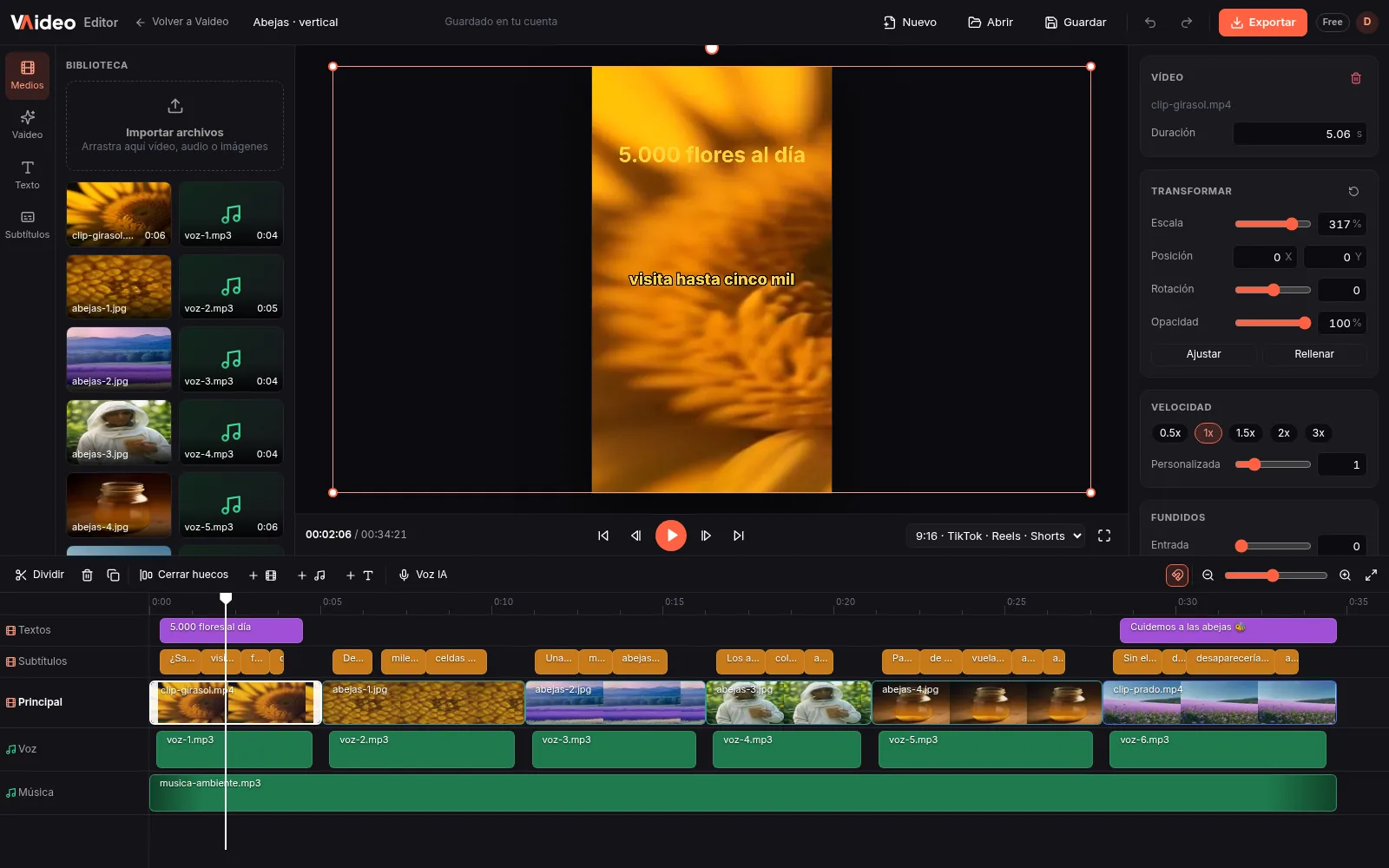
If you shot in landscape, that's fine: after switching the canvas to 9:16 you can raise the clip's Scale and move it with Position to keep the important part, or leave it smaller over a coloured background and use the space above and below for a title. Once it's done, the same MP4 works on all three networks.
Text, captions and pace: what keeps people watching
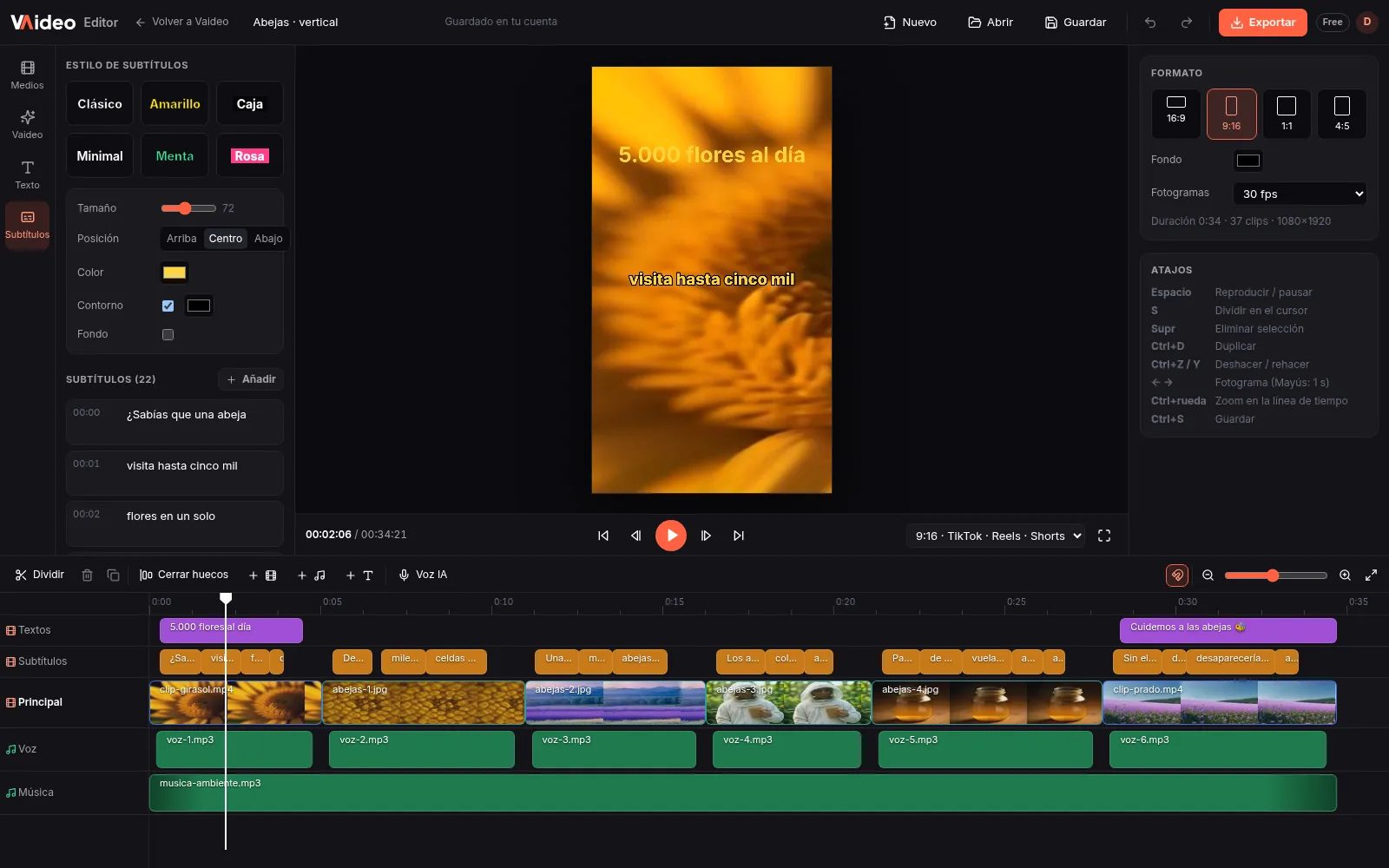
Many people watch these videos muted, so on-screen text does the work for you. The Text tab has ready-made styles for a hook (Title, Impact, Black box, Alert…) and in the right panel you change size, colour, background, bold or italic. Captions are added by hand in the Captions tab, with one shared style for all of them (Classic, Yellow, Box…) and top, middle or bottom position.
Pace comes from cutting: remove pauses and hesitations, split with S and use “Close gaps”. With speed (0.25x to 4x, with quick chips from 0.5x to 3x) you speed up a recipe or tutorial and slow down the key moment. Note there are no transitions or effects: the hard-cut style, the most common one on TikTok, works perfectly well.
Limits and an AI shortcut
Vaideo Editor runs on computers (900 px screen or wider), not on phones, and it doesn't include trending sounds or a music library: you can add your own audio, respecting copyright. It also doesn't auto-caption your own video. You'll find the rest of the features at /en/cases/free-video-editor/.
If you don't have clips, Vaideo's AI can create a vertical video from a topic: script, AI voice, images and captions already in sync. Then you hit “Open in the editor” and adjust the text or scenes. The free plan includes 1 AI video a day, which carries the vaideo.org watermark.
Ideas to use it
Adapt a landscape video for TikTok
Switch the canvas to 9:16 and reframe with Scale and Position, or leave coloured bands with a title on top.
A sped-up tutorial or recipe with on-screen steps
Speed up slow parts to 2x or 3x and add a “Black box” text for each step.
A talking-head video with captions
Cut the pauses, add captions line by line and pick the “Yellow” or “Classic” style so they read without sound.
A voice-over video without recording yourself
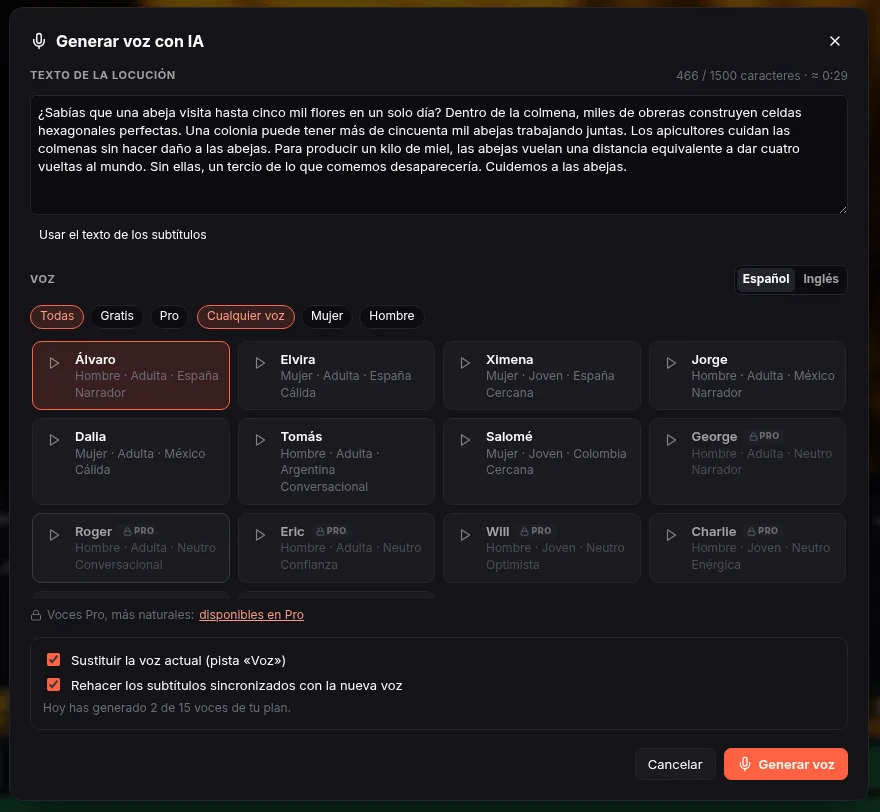
Hit “Voz IA” (AI voice), type the text and pick one of 13 free voices: the voice-over lands on its track and the captions come out synced, ready to read with the sound off.
Step by step
- 1
Open the editor and choose 9:16
Go to https://app4.vaideo.org on your computer and under Format choose 9:16 (TikTok · Reels · Shorts). If you like, set the frame rate to 30 fps.
- 2
Import your clips
Sign in with your free account, click “Import files” in the Media tab and drag the clips onto the timeline.
- 3
Cut and set the pace
Trim by dragging the edges, split with S, delete what you don't need and use “Close gaps”. Change the Speed of slow sections.
- 4
Add the hook and captions
Put a title in the first seconds from the Text tab and add captions in the Captions tab with “Add”, choosing one style for all.
- 5
Export at 1080x1920
Click “Export”, keep 1080p and “Download MP4”. Upload it to TikTok, Reels or Shorts from your phone or computer.
Tips that make the difference
- ★Put the hook in text within the first 2 seconds: that's when many viewers decide whether to keep watching.
- ★Keep the bottom strip and right edge clear: that's where the app shows the name, caption and buttons.
- ★Place captions in the Middle if the platform puts a lot of text at the bottom of your video.
- ★Cut every pause longer than half a second; in vertical video, pace is everything.
- ★If you use music, keep it at 10-20% under the voice and add a fade-out at the end.
Typical editor vs Vaideo Editor
| Desktop app or sign-up web editor | Vaideo Editor | |
|---|---|---|
| Vertical canvas | Sometimes you set the resolution by hand | 9:16 button (TikTok · Reels · Shorts), 1080x1920 |
| Export 1080p with no watermark | Many free web editors add a watermark or cap at 720p | Free, your footage with no watermark |
| Installation | Download and install software | None: it runs in your computer's browser |
| Trending sounds and effects | Often include libraries | No: only your own audio, no effects or transitions |
Frequently asked questions
What size should a TikTok video be?+
Vertical 9:16, at 1080x1920 pixels. That's what Vaideo Editor exports for free when you choose the 9:16 canvas. The same file works for Instagram Reels and YouTube Shorts.
Can I edit TikTok videos on my phone with Vaideo?+
No. Vaideo Editor runs in your computer's browser and needs a screen at least 900 pixels wide. You edit on the computer and then upload the MP4 from wherever you like.
Does it add captions automatically?+
It doesn't transcribe your own videos: if you speak on camera, captions are added by hand. If you generate the voice with AI voice (“Voz IA”), the editor creates captions synced to it, and videos created by Vaideo's AI also come with captions you can edit on their own track.
Can I use TikTok songs?+
The editor has no music library. You can upload your own audio, but make sure you have the rights; another option is to export without music and add a sound from the app itself when posting.
Does the exported video have a watermark?+
Not if it's your own footage: what you upload and export comes out clean on any plan. Only AI-made videos on the free plan carry the vaideo.org watermark.
Can I speed up or slow down parts of the video?+
Yes. Split the clip where the section starts and change its Speed between 0.25x and 4x, with quick buttons for 0.5x, 1x, 1.5x, 2x and 3x.
Updated: