Editing a YouTube video in your browser
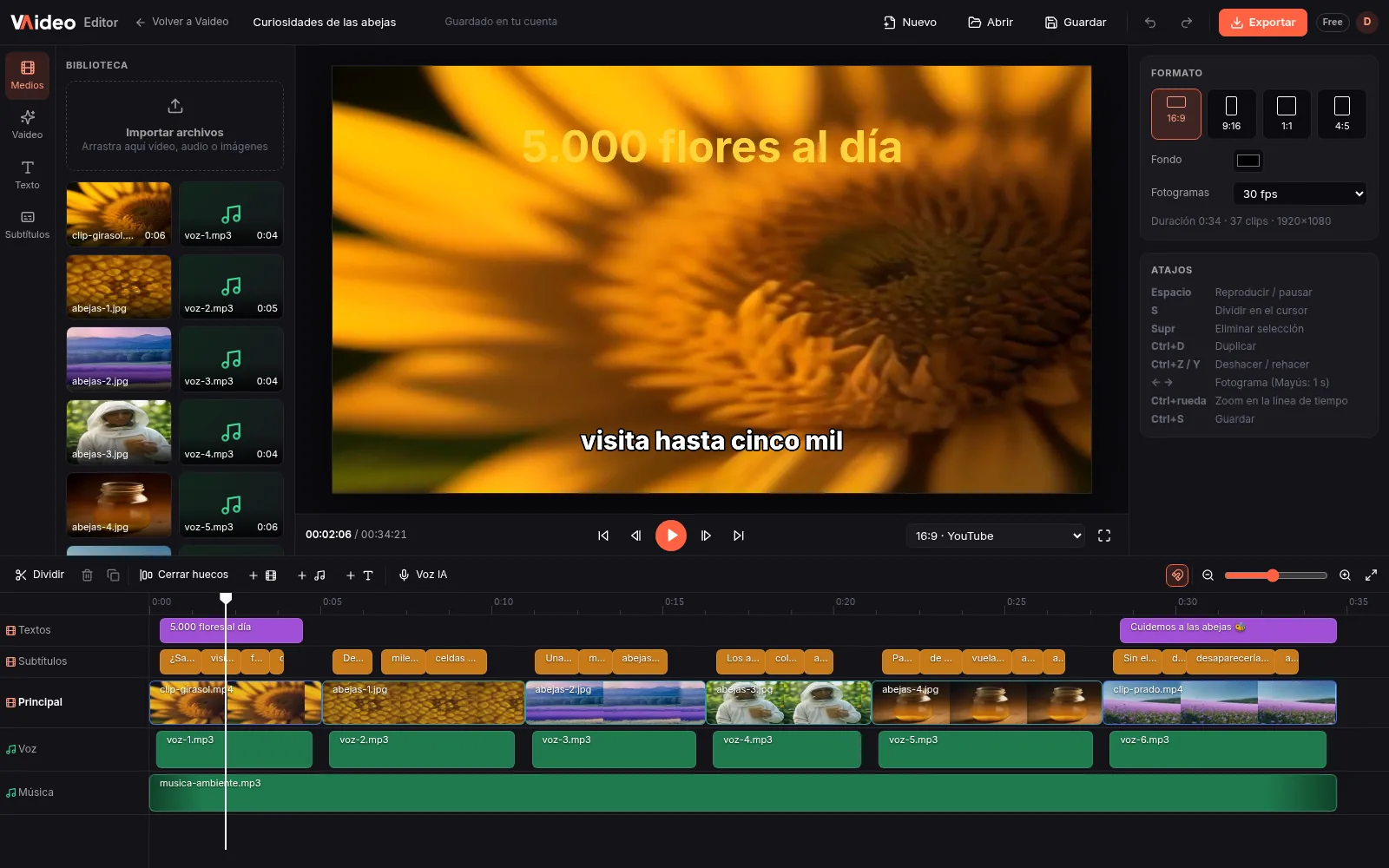
A typical YouTube video needs just a few tools: remove the mistakes and pauses from the recording, join takes, add a title or lower third, balance voice and music and export in 16:9. Vaideo Editor gives you all of that without installing any software, at https://app4.vaideo.org on your computer.
The 16:9 canvas (1920x1080) is the default and the picker marks it “YouTube”. You upload video, audio or images up to 2 GB per file, place them on video layers and audio tracks, and work with familiar shortcuts: S to split, Del to delete, Ctrl+D to duplicate and Ctrl+Z to undo.
Voice, music and export quality
You can record your voice with any app and upload it as audio, or use the sound from your own footage. Each clip has Volume from 0 to 200%, Mute, and fade-in and fade-out of up to 5 seconds. Music has to be yours or licensed: the editor has no library, and YouTube detects copyrighted music.
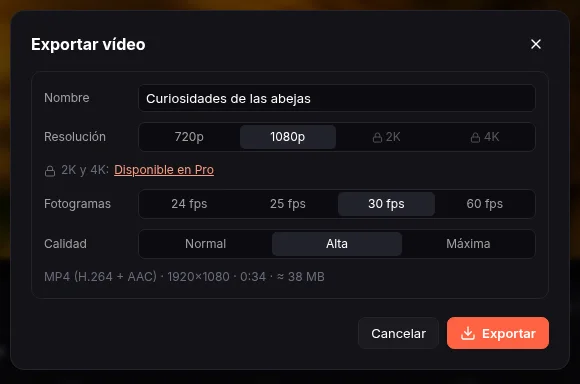
When you click “Export” you choose resolution (720p, 1080p, 2K or 4K), frame rate and quality, and download an MP4 (H.264 + AAC) that YouTube accepts without issues. On the free plan you export up to 1080p, one export at a time; with Unlimited (€39/month) also in 2K and 4K.
AI-narrated videos for your channel
If your channel covers explainers, lists, history or news, Vaideo's AI generator saves you the assembly: you write a topic or paste an article and it creates the script, the AI voice in English or Spanish, the images and the captions. With “Open in the editor” you get it in tracks to fix a line, swap an image or add your intro.
On the Unlimited plan, videos created in the generator can be uploaded straight to YouTube from Vaideo; from the editor, by contrast, you download the MP4 and upload it yourself. What the editor doesn't have: transitions, effects, templates, screen recording or automatic captions for your own video. There's a full overview at /en/cases/free-video-editor/.
Ideas to use it
Clean up a talking-head recording
Split with S at each mistake, delete the bad take and use “Close gaps” so the video flows.
A tutorial with your voice-over and soft music
Put the voice on one audio track and the music on another at 10-20%, with a fade-out at the end.
A narrated video without recording anything
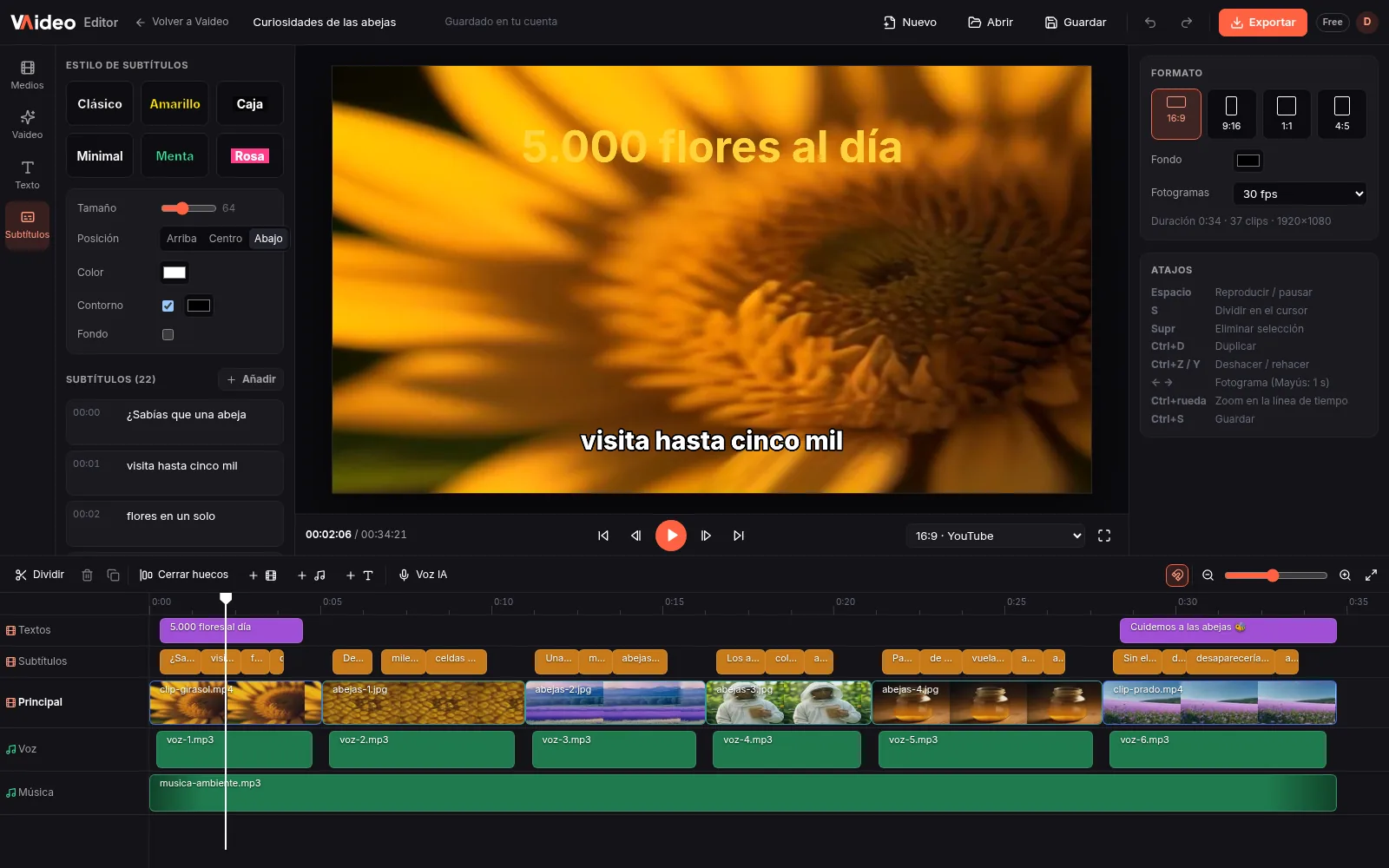
Generate it with the AI from a topic or article and fine-tune it in the editor, or assemble your own images and add the voice-over with AI voice: 13 free voices in Spanish and English, with synced captions.
Step by step
- 1
Open the editor in 16:9
Go to https://app4.vaideo.org on your computer. The 16:9 (YouTube) canvas is the default; under frame rate choose 24, 25, 30 or 60 fps to match your footage.
- 2
Import your takes and audio
Sign in with your free account, click “Import files” in the Media tab and drag video, voice and music onto the timeline.
- 3
Cut and join
Trim by dragging the edges, split with S or Ctrl+B, delete what you don't need and use “Close gaps” to join the takes.
- 4
Adjust text, colour and sound
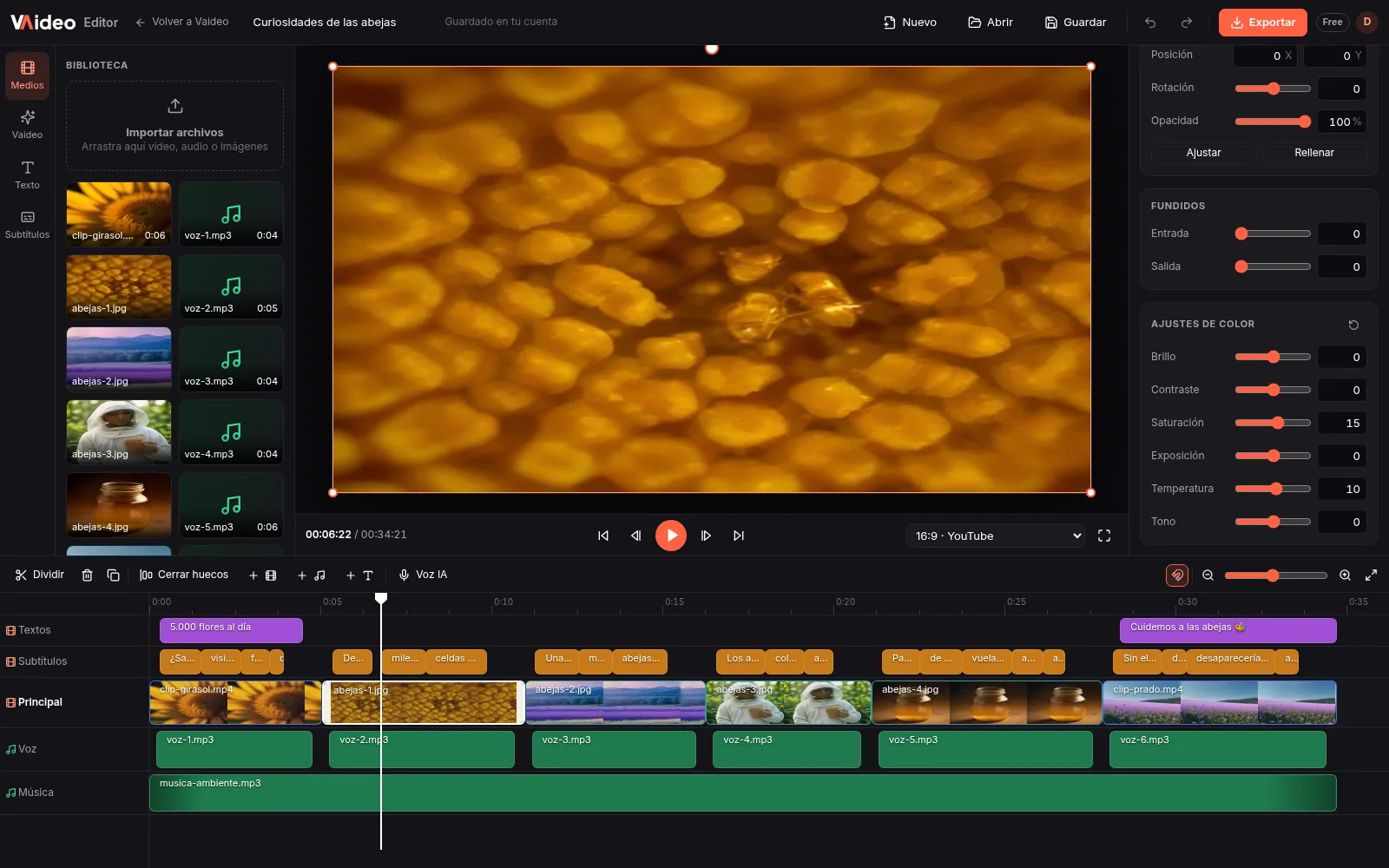
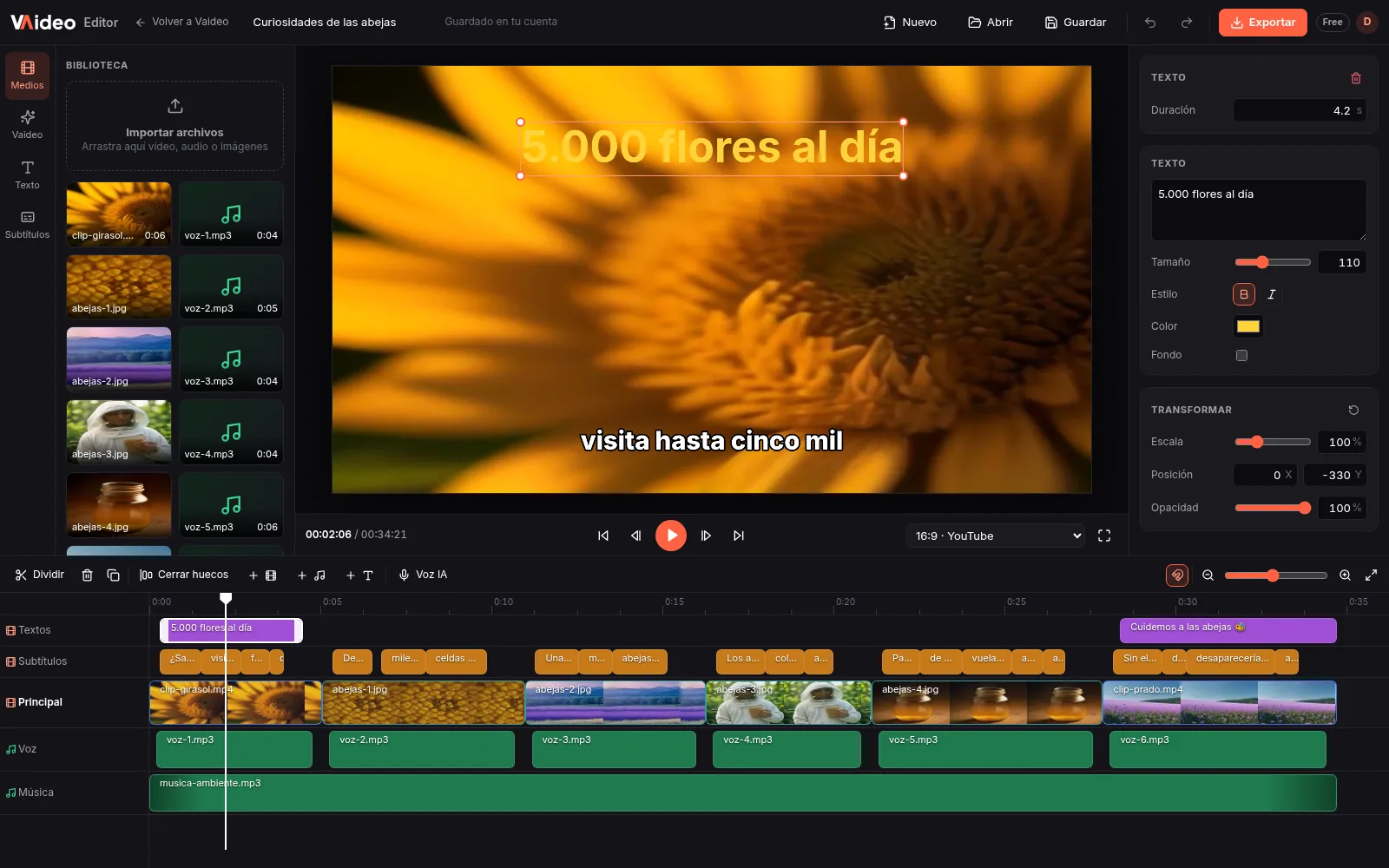
Add titles from the Text tab, correct colour in colour settings and balance Volume and fades on each track.
- 5
Export and upload to YouTube
Click “Export”, choose 1080p (or 2K/4K with Unlimited) and “Download MP4”. Then upload it from YouTube Studio.
Tips that make the difference
- ★Record and export at the same frame rate (for example, 30 fps) to avoid jerky motion.
- ★Split and delete each mistake as soon as you spot it; at the end you'll just hit “Close gaps”.
- ★Use music licensed for YouTube: the copyright system can claim or mute your video.
- ★Add a “Black box” or “White box” caption when you introduce someone or a key fact.
- ★Save often with Ctrl+S: the project stays in your account and you can reopen it from “My projects”.
Typical editor vs Vaideo Editor
| Desktop program or sign-up web editor | Vaideo Editor | |
|---|---|---|
| Installation and requirements | Download, install and sometimes a powerful computer | In the browser; export runs on the server |
| Export 1080p for free | Many free web editors add a watermark or cap at 720p | Yes, no watermark on your footage; 2K and 4K with Unlimited |
| Narrated videos without recording | You record voice, find images and assemble by hand | The AI generator creates it, or you add the voice with AI voice in the editor |
| Transitions, effects and screen recording | Usually included | Not available |
Frequently asked questions
What's the best video format for YouTube?+
MP4 with H.264 and AAC audio, in 16:9. That's exactly what Vaideo Editor exports: 1920x1080 on the free plan and up to 4K with Unlimited.
Can I export in 4K for YouTube?+
Yes, with Unlimited (€39/month), which adds 2K and 4K. With the free account you export up to 1080p.
Can I upload straight to YouTube from the editor?+
Not from the editor: you download the MP4 and upload it in YouTube Studio. Direct YouTube upload exists for videos created with the AI generator, on the Unlimited plan.
Can I add music to my YouTube video?+
Yes, by uploading your own audio file. There's no music library, so use tracks licensed for YouTube to avoid copyright claims.
Is there a length or size limit?+
Each file you upload can be up to 2 GB. On the free plan you can run one export at a time; for long videos, split the recording if it's bigger than that.
Can I record my screen or camera from the editor?+
No. Record with whatever tool you prefer and upload the file. The editor handles the editing and export.
Updated: