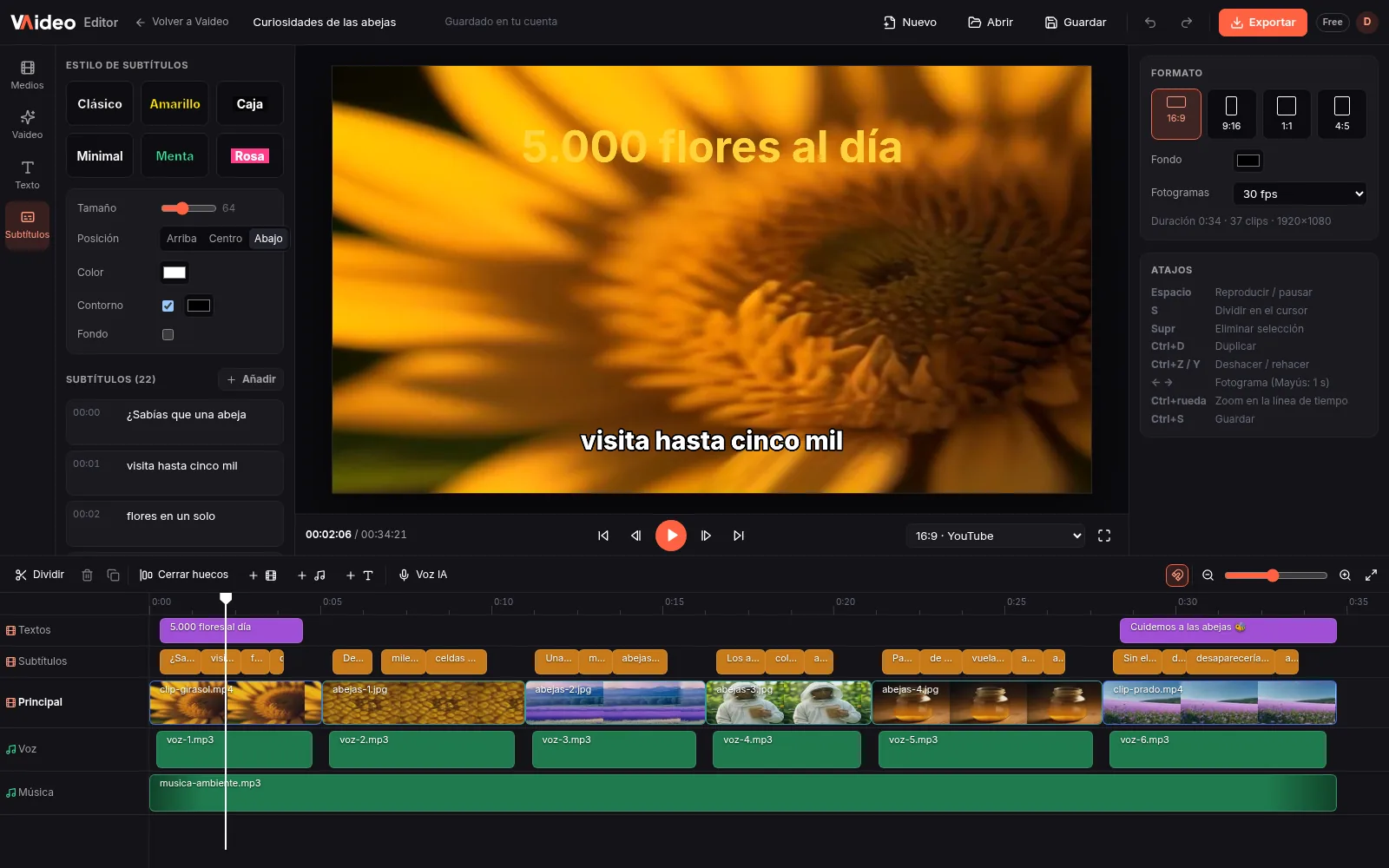
What exports without a watermark (and what doesn't)
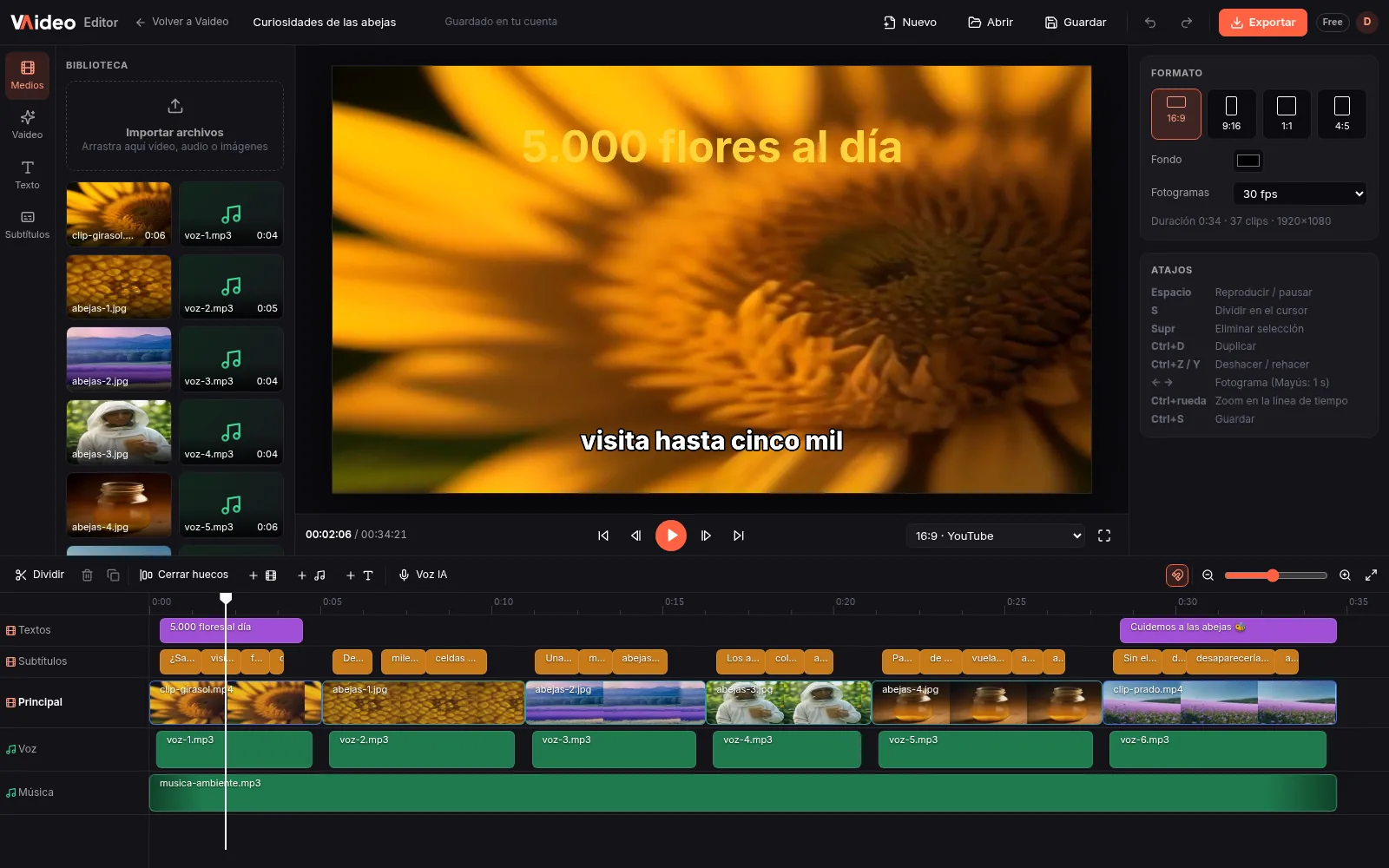
Everything you upload yourself —videos, audio and images— and edit on the timeline exports with no watermark, on the free plan and on paid ones. There's no corner logo, no promo end screen and no “made with” label. The MP4 you download is just your video.
The exception, stated plainly: videos created by Vaideo's AI (generated script, voice, images and captions) carry the vaideo.org watermark if you make them on the free plan, and keep it even if you later open them in the editor. With a video pack (from 5 videos for €5, one-time) or Unlimited (€39/month) those videos export clean too.
What's free and what the free plan limits
Free gets you the full editor: video, image, text and caption layers, audio tracks, trimming, splitting, speed, colour, volume and fades, and 16:9, 9:16, 1:1 and 4:5 canvases. You need a free account to upload files (up to 2 GB each), save and export.
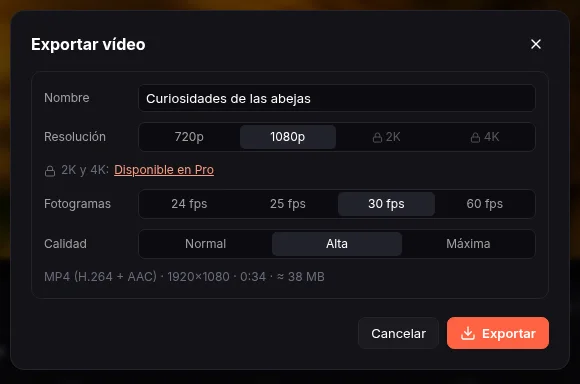
The free plan's limits aren't the watermark but resolution and queue: you export up to 1080p and one export at a time. With Unlimited you can export in 2K and 4K. You'll find every editor feature at /en/cases/free-video-editor/.
Your brand instead of ours
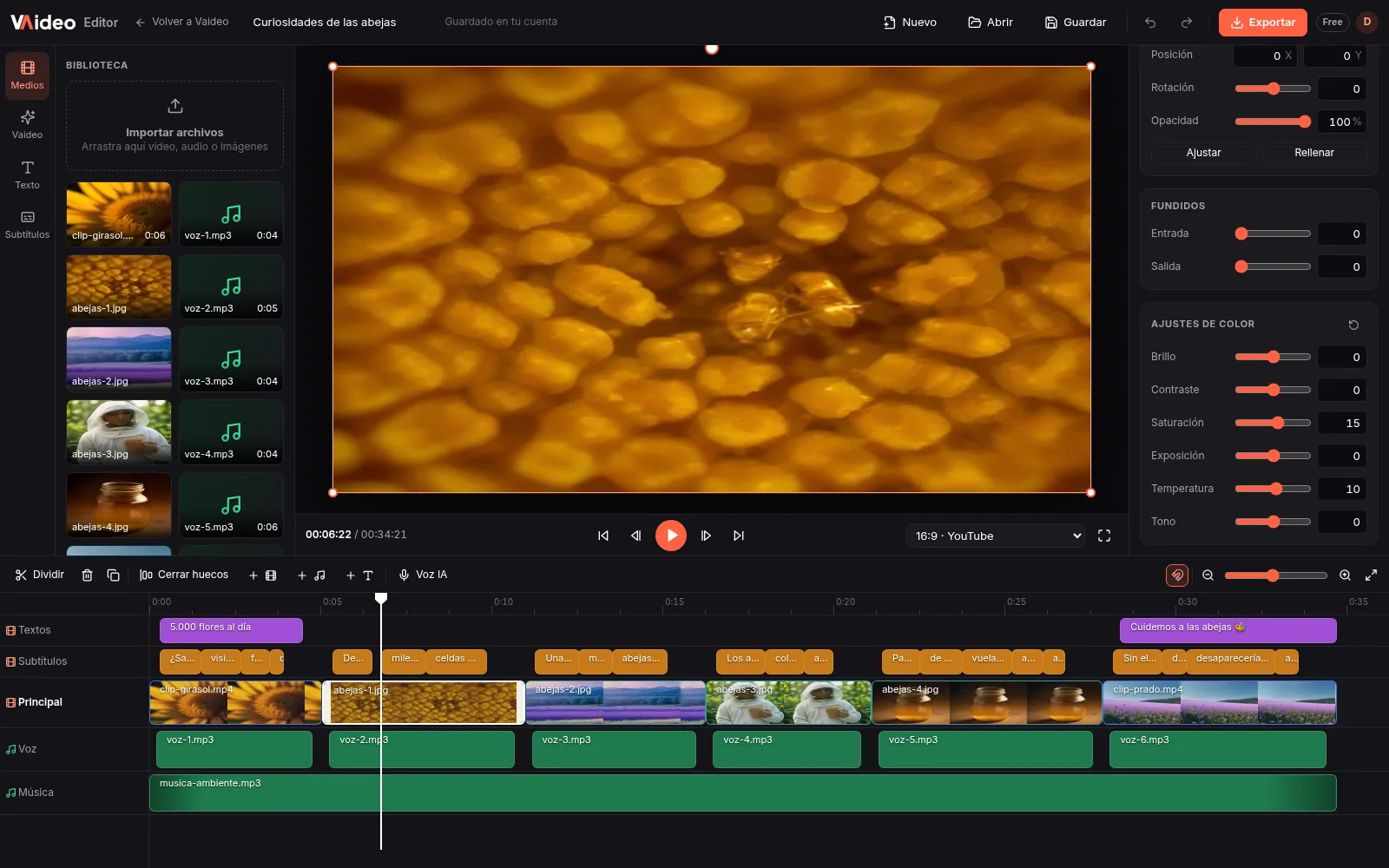
Since the video exports clean, you can add your own brand: upload your logo as a PNG image, place it on a layer above the video and set its Scale, Position and Opacity so it sits discreetly in a corner for the whole video.
One thing the editor doesn't do is remove watermarks already baked into a video downloaded from another app: it has no crop tool or logo-removal tools. The best approach is to export from the source without a watermark or use your original footage.
Ideas to use it
Videos for clients or your business
Deliver a clean MP4 with no third-party logos, without paying for a subscription.
Add your own logo as a watermark
Upload a transparent PNG, move it to a corner and lower its Opacity to 60-80%.
Reuse a clip across networks
Export the same piece in 9:16, 1:1 and 16:9 without any version carrying another app's watermark.
Step by step
- 1
Open the editor and sign in
Go to https://app4.vaideo.org on your computer and click “Sign in” to create your free account; no card needed.
- 2
Upload your own footage
In the Media tab click “Import files” or drag in video, audio or images (up to 2 GB per file).
- 3
Edit on the timeline
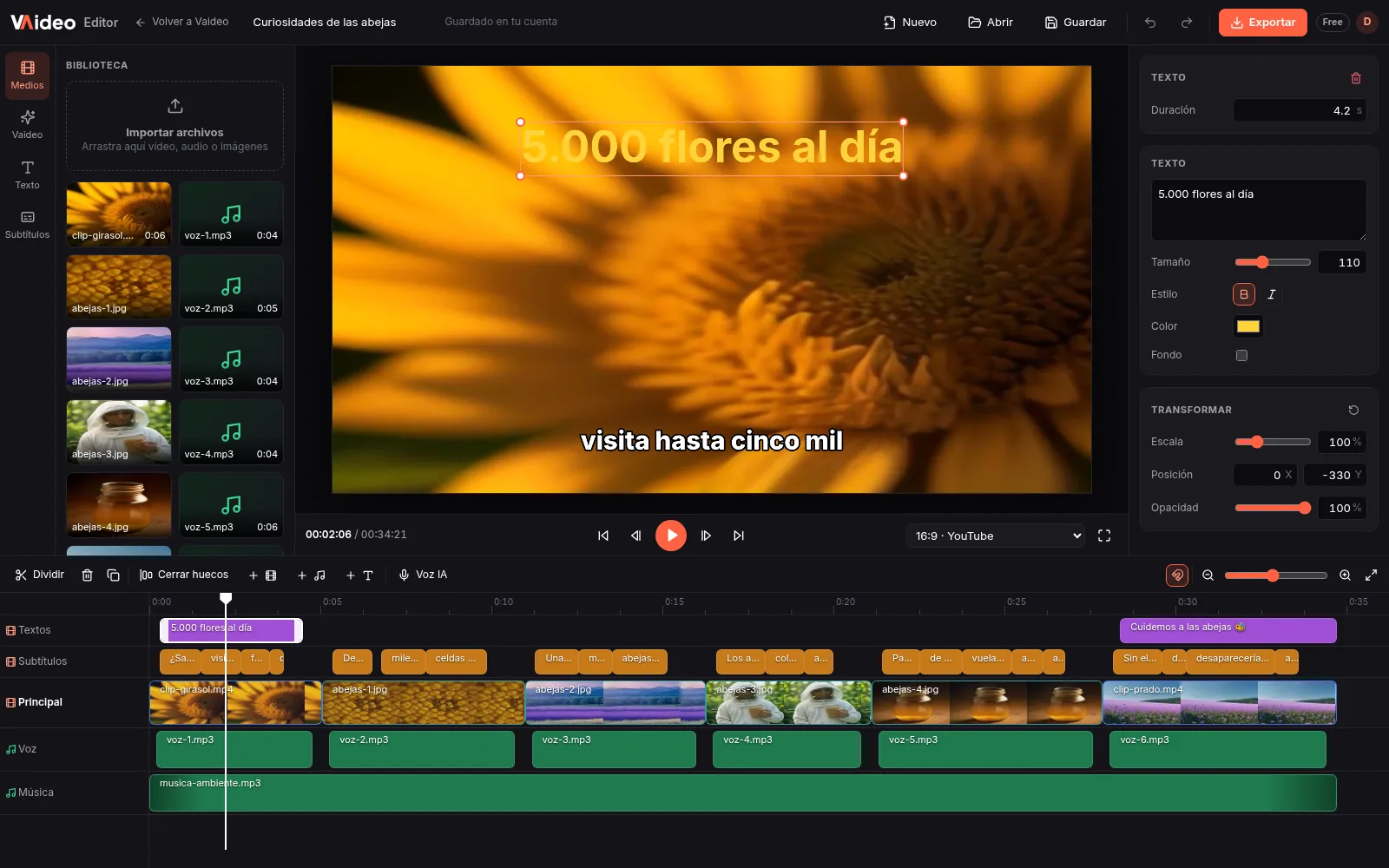
Split with S, delete with Del, add text and adjust speed, colour and volume from the right panel.
- 4
Add your logo if you like
Import your logo as an image, put it on a top layer and set scale, position and opacity.
- 5
Export without a watermark
Click “Export”, choose up to 1080p and “Download MP4”. The file comes out with no logo added.
Tips that make the difference
- ★Always start from your camera's or phone's original file, not a video downloaded from a social network, which may carry its own watermark.
- ★If you add your logo, use a PNG with a transparent background so no box shows up.
- ★Keep your logo small and away from where apps place buttons and text.
- ★If you regularly need AI videos without a watermark, weigh the cost of a pack or Unlimited against the time it saves you over editing by hand.
- ★Export at 1080p even if you shot in 4K: it's free and most networks play at that resolution.
Typical free editor vs Vaideo Editor
| Free sign-up web editor | Vaideo Editor | |
|---|---|---|
| Watermark on your footage | The free plan often adds its logo | None, free plan included |
| Free resolution | Often capped at 720p | MP4 up to 1080p; 2K and 4K with Unlimited |
| AI-made videos | Usually not available | Yes; on the free plan they carry the vaideo.org watermark |
| Remove other apps' watermarks | Some offer crop or blur | No: no crop or logo-removal tools |
Frequently asked questions
Does it really add no watermark for free?+
Not on your own footage. What you upload and export comes out clean on any plan, including the free one. Only videos created with Vaideo's AI on the free plan carry the vaideo.org watermark.
How do I remove the watermark from AI-made videos?+
With a video pack (5 for €5, 15 for €12 or 40 for €25, one-time) or Unlimited (€39/month), AI-made videos export without the vaideo.org watermark. On the free plan they keep it even if you open them in the editor.
Do I need to sign up?+
You can open and try the editor without an account, but to upload files, save and export you need a free Vaideo account. No card required.
Can I remove the watermark from another app's video?+
No. Vaideo Editor has no crop tool or logo-removal tools. If the video is yours, export it without a watermark from the original app or use the file you recorded.
If I add an AI voice, does the video get a watermark?+
No. AI voice (“Voz IA”) only generates the voice-over audio (13 free voices in Spanish and English) and rebuilds the captions; the video you export from the editor stays watermark-free. The watermark only appears on full videos created with Vaideo's AI on the free plan.
At what quality does it export without a watermark?+
As MP4 (H.264 + AAC) up to 1080p on the free plan, and 2K or 4K with Unlimited. The watermark doesn't depend on resolution: your footage never carries it.
Does it work on mobile?+
No. It runs in your computer's browser, on a screen at least 900 pixels wide. There's no mobile app.
Updated: